
MIGASENDER
Orientation:

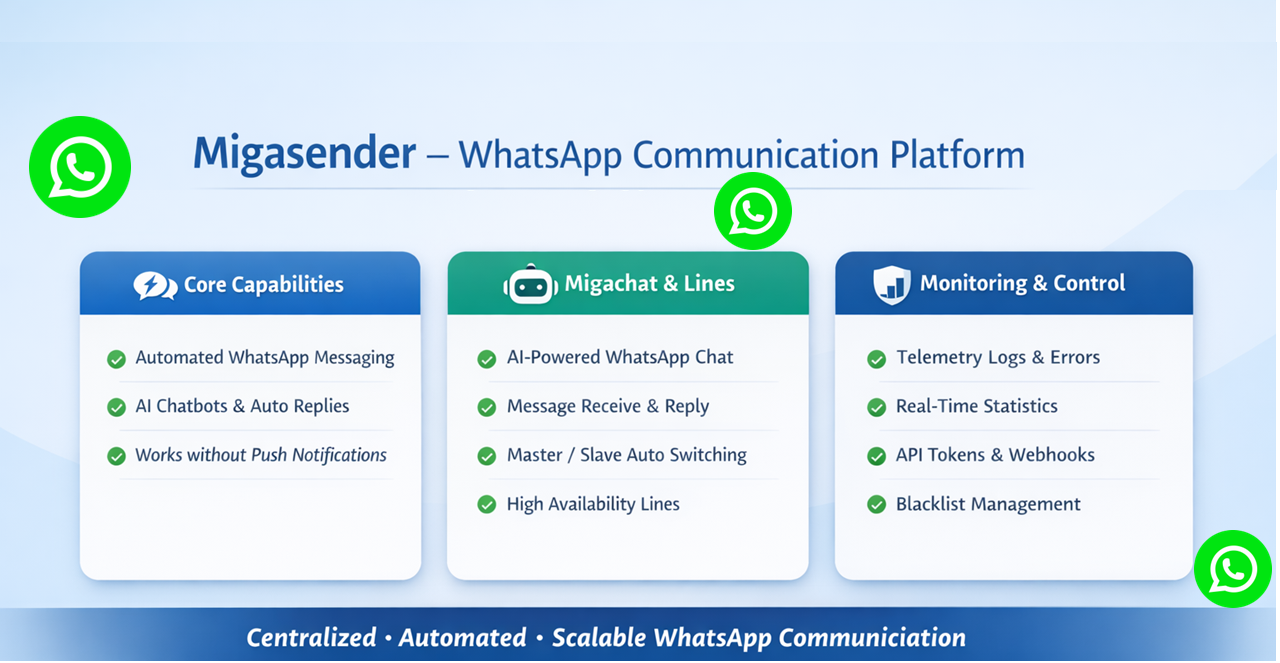
Migsender introduces a powerful new capability that allows WhatsApp messages to be dispatched directly from Siberian to all users with registered mobile numbers. This enhancement addresses a critical communication gap by enabling outreach to users who may not be reachable through traditional push notifications.
Automated Communication: It manages all interactions with customers and leads via WhatsApp, using AI chatbots for frequently asked questions, automated messages, and notifications. This allows businesses to respond to customers immediately without wasting time.
Centralized Management: Through Migacrm, all information related to leads, customers, and documents is centralized and easily accessible. This enables effective lead management through automated pipelines and real-time dashboards, reducing information fragmentation and improving team autonomy.
Predictable Acquisition: Migasender helps build a consistent flow of qualified leads through strategies such as automated referrals, SEO, and optimized advertising, reducing reliance on paid advertising campaigns.
This update also delivers seamless integration with the MIGACHAT module, including an optional AI-powered interaction feature within Siberian. Upon installation, administrators can easily enable or disable MIGACHAT integration via a newly added settings menu. By default, the integration is enabled.
With this integration in place, MIGACHAT is capable of:
- Receiving messages sent by WhatsApp users
- Processing messages through AI-driven responses
- Forwarding replies back to the appropriate WhatsApp user
- Managing structured message forwarding workflows
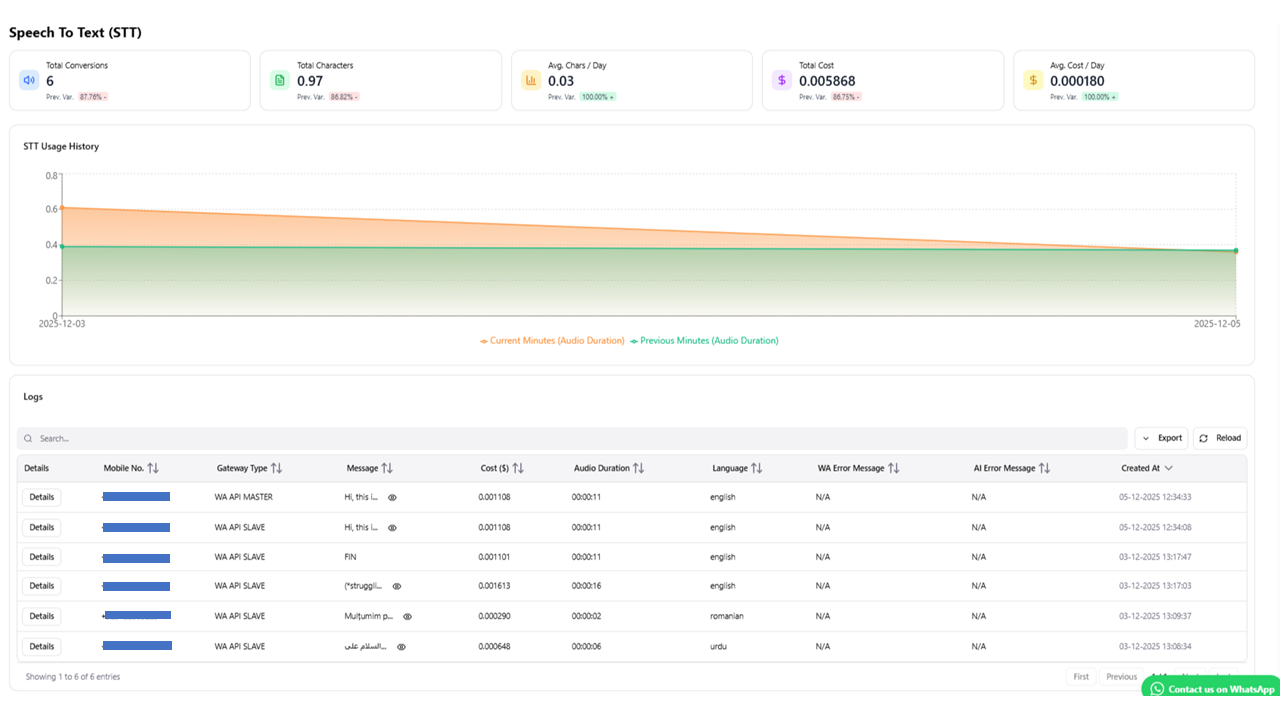
- Maintaining conversation history (logs) and interaction statistics
- Supporting Text-to-Speech (TTS) and Speech-to-Text (STT) capabilities for enhanced user interaction
This upgrade significantly enhances omnichannel communication, intelligent automation, and user engagement across the Siberian ecosystem.
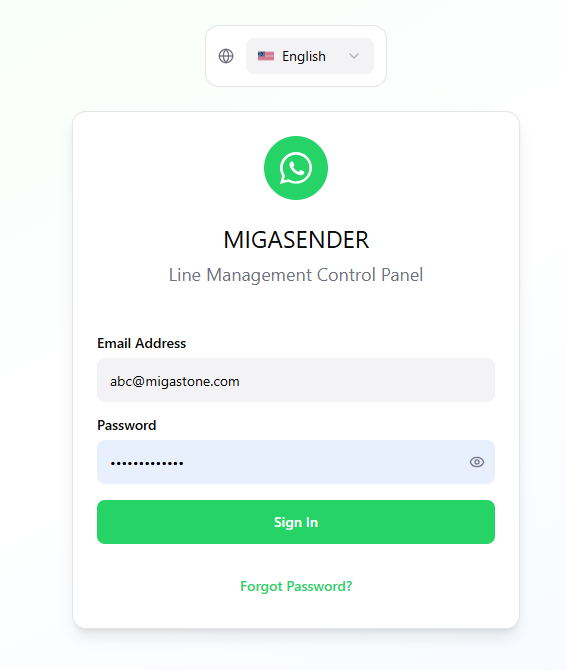
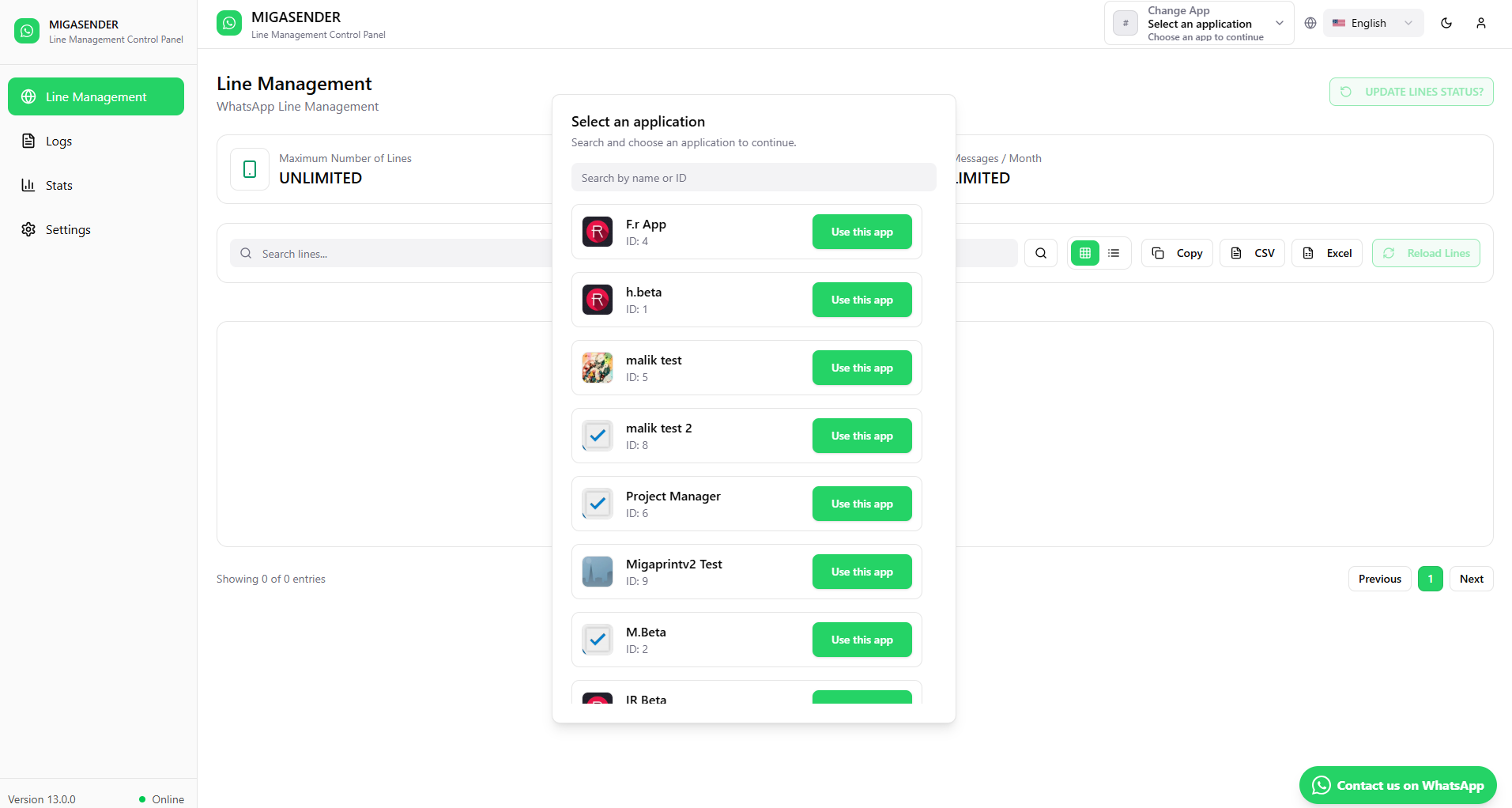
After login user will get the list of Apps,, just click on the specific App and get App setting data etc..
Line Management:
Line management in Migasender is handled through the Migawhatsapp Line Management API. Here’s how it works:
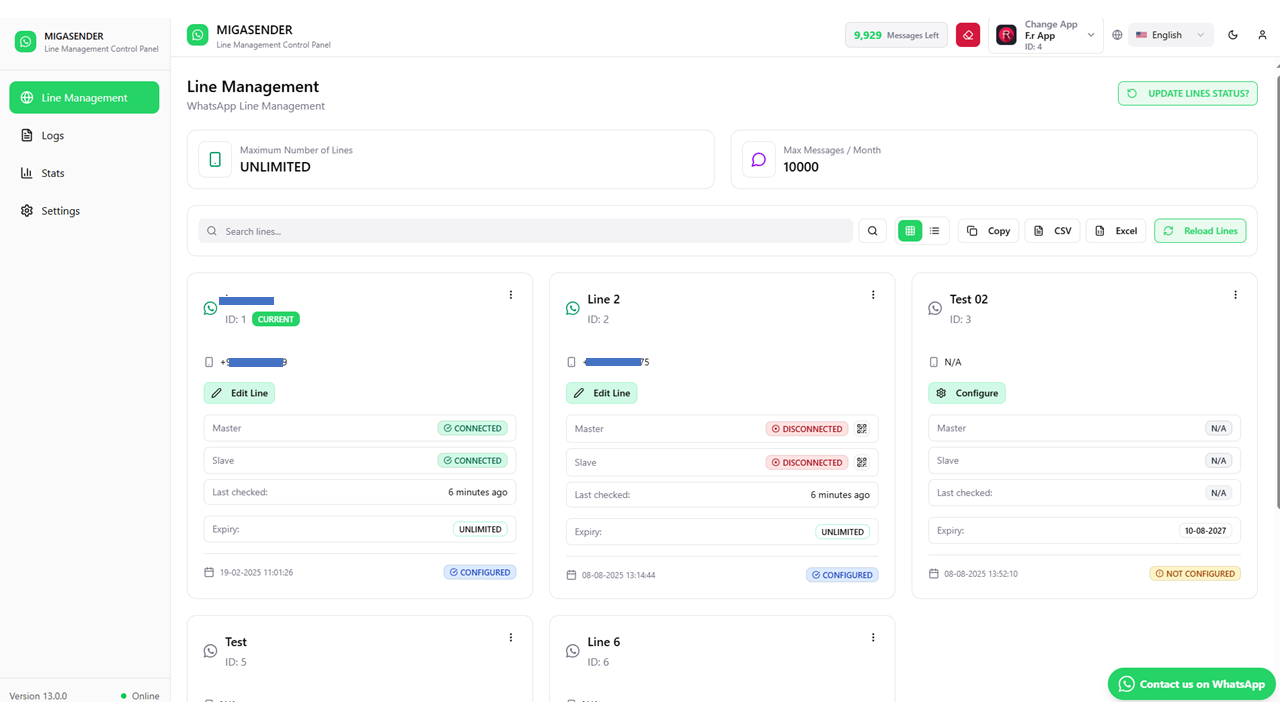
Line Creation and Configuration: You can create a new line using the “Create Line” endpoint, where you must provide a security token and the application ID. You can also set an expiration date and a maximum number of messages per month.
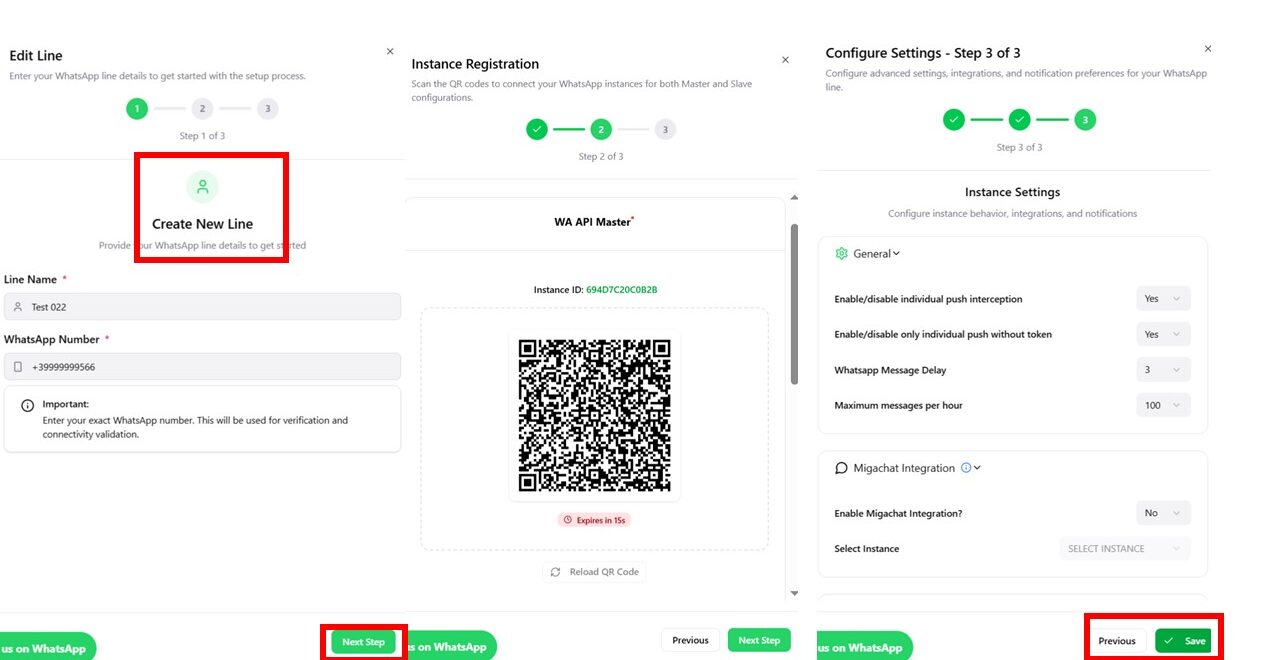
Line Updates: Lines can be updated via the “Update Line” endpoint, allowing you to change the line status, expiration date, or maximum number of messages. You need to specify the ID of the line to be updated.
Line Retrieval: You can retrieve information about a specific line or all lines using the “Retrieve a Specific Line” and “Retrieve All Lines” endpoints. These endpoints return details such as the line status and expiration dates.
Line Deletion: If needed, lines can be deleted using the “Delete Line” endpoint by providing the security token and the ID of the line to be removed.
Status Monitoring: The system automatically manages the switch between the primary (Master) line and a backup (Slave) line in case of issues, ensuring service continuity.
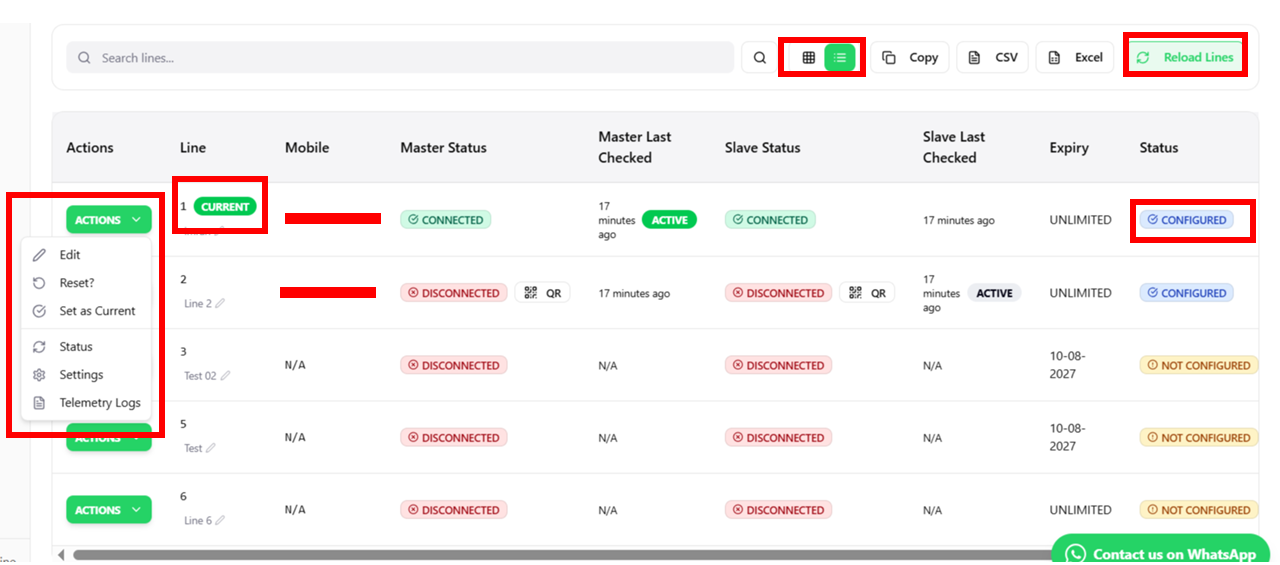
This structure enables efficient and scalable management of WhatsApp communications, reducing the risk of interruptions and optimizing resource usage.
LOGS:
Log management in Migasender allows you to monitor and view interactions and events. Here’s how it works
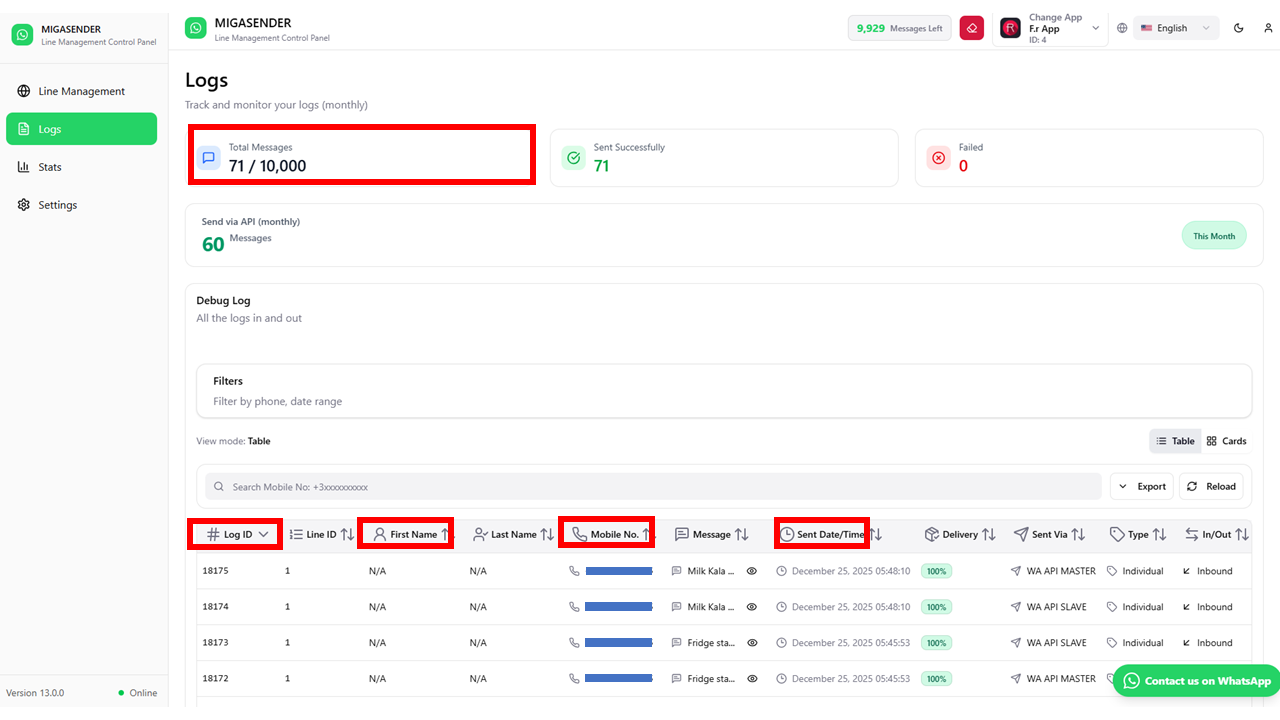
Access to Logs: Users can view the logs of the last 30 chats through the Migawhatsapp module. This includes any errors encountered during interactions.
Log Details: The logs provide detailed information such as:
Log ID: Uniquely identifies each record.
Line ID: Indicates which line the interaction is associated with.
User Information: First name, last name, email, and phone number of the recipient.
Message: Content of the sent message.
Timestamp: Date and time when the interaction occurred.
Log Status: Indicates whether the message delivery was successful, resulted in an error, or encountered specific issues such as an “invalid number”.
Monthly Statistics: Within the logs section, there is a monthly report showing statistics such as the total number of messages sent, the number of failed messages, and the total number of messages available to send per month. These data are updated in real time.
Errors: If an error occurs, such as when a number does not exist on WhatsApp, it is displayed in the log with specific details to help troubleshoot the issue.
This logging system is essential for monitoring the effectiveness of communications and ensuring that any issues are identified and resolved promptly.
STATS:
The Statistics section in Migasender provides detailed data on communication performance. Here’s how it works and what data is shown:
Monthly Statistics: Under the “Logs” tab, you can view a monthly report that includes:
Total message quota: The total number of messages that can be sent in a month.
Messages sent: The count of all successfully sent messages.
Failed messages: The count of messages that were not delivered for various reasons, such as invalid numbers or gateway issues.
API Sending: There is a specific report for messages sent via API, showing the number of messages successfully sent using this method.
Real-Time Updated Data: The statistics are automatically updated in real time, providing a clear and up-to-date view of performance without needing to reload the page.
Statistics Visualization: Statistics can be presented in various formats, such as tables, charts, and downloadable CSV reports. This allows users to easily analyze the data and generate reports for business performance management.
This statistics system is essential for monitoring the effectiveness of communication campaigns and optimizing marketing strategies.
Migasender Chat Interface:
A WhatsApp Web-style inbox built directly inside Migasender — send, receive
and manage messages from the dashboard
he Migasender Chat Interface allows operators to read and reply to WhatsApp messages directly
from the dashboard — no phone needed. It connects to the existing database that already stores all
messages, so no new APIs or webhooks are required for display. Two separate views (modes) cover
different team needs

Single Line Mode

Real Life Example: A Pizza restaurant has one WhatsApp number +39 02 9999. Three employees —
Oscar, Miram, and Waltr — all open Migasender on their laptops and see the same inbox. Each can
Reply to different customers at the same time.
Multi-Line Mode
Real Life Example: Pizza Palace now has 3 numbers — Milan +39 02 1111, Rome +39 06 2222, Naples
+39 08 3333.
Customer “Ali” contacted Milan on Monday, Rome on Wednesday, and Milan again on Friday. In Multi
Line Mode — all three conversations appear under Ali’s name, with a badge showing which line each
message came from.
chat tags:


| Feature | Status |
|---|---|
| WhatsApp Web-style chat UI | ✅ Included |
| Single Line Mode | ✅ Included |
| Multi Line Mode (per-recipient) | ✅ Included |
| Last 30 days chat history | ✅ Included |
| Real-time message display (DB polling) | ✅ Included |
| Send messages from interface | ✅ Included |
| Line badge on each message (Multi Line) | ✅ Included |
| Tag system — PENDING, DONE | ✅ Included |
| Custom tags (name + color) | ✅ Included |
| Tags visible in sidebar chat list | ✅ Included |
| DB-level implementation (no new webhooks) | ✅ Included |
Settings:
The Settings in Migasender allow you to configure various aspects of the system to optimize communications and interactions. Here’s how they work and how they can be managed:
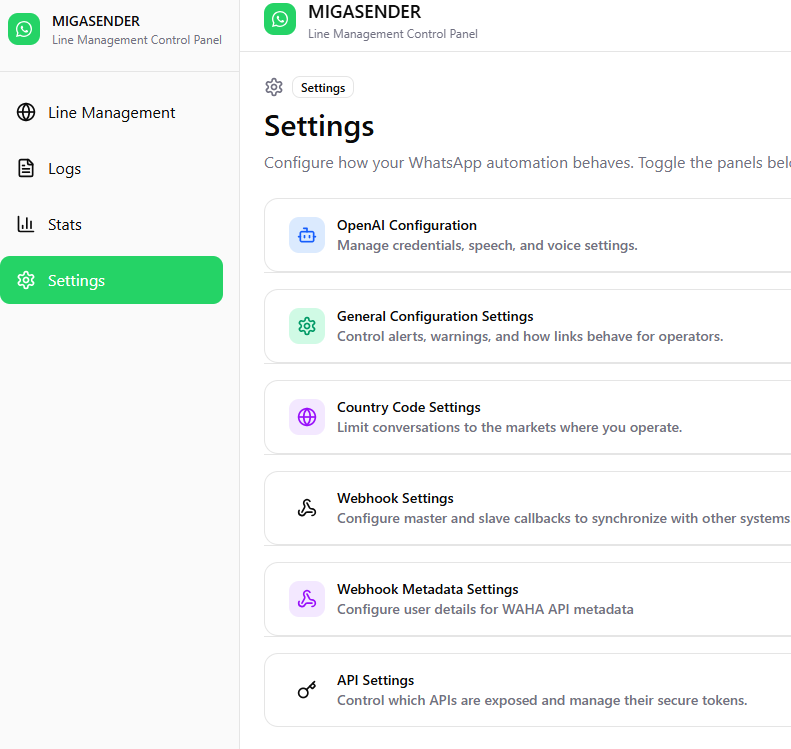
Accessing the Settings Panel: Users can access the settings panel from the Migasender app section. Here they can configure general settings, API integrations, and specific options for Migachat and Migawhatsapp.

General Configuration:

Webhooks: Users can set webhook URLs to receive event notifications. Webhooks can be enabled or disabled without losing existing settings.

Notification Language: Administrators can translate notifications into different languages, making communication easier for users from different backgrounds.
Integration Settings:
Migachat: The integration with Migachat can be enabled or disabled. Migachat handles user interactions via AI, and the Migachat module must be installed and configured.
API Configuration: API settings allow management of authentication tokens and definition of usage limits to ensure optimal use of resources.
- The Settings that enable the Chat history API Token.
- Enabled Send Message API allows the user to get an API Token.
- For more Details, Please Read the API Documentation.

- Notice: To use Migachat, make sure the Migachat module is installed in the app and properly configured.
Blacklist Management: Users can configure temporary or permanent blacklists for specific numbers, preventing unwanted users from accessing the APIs.
Message Sending Settings: Users can configure options for link display in messages, deciding whether to show previews, and manage message delays.
Saving and Validation: After making changes, the system validates credentials and settings before allowing them to be saved. If errors are found, the save will not proceed.
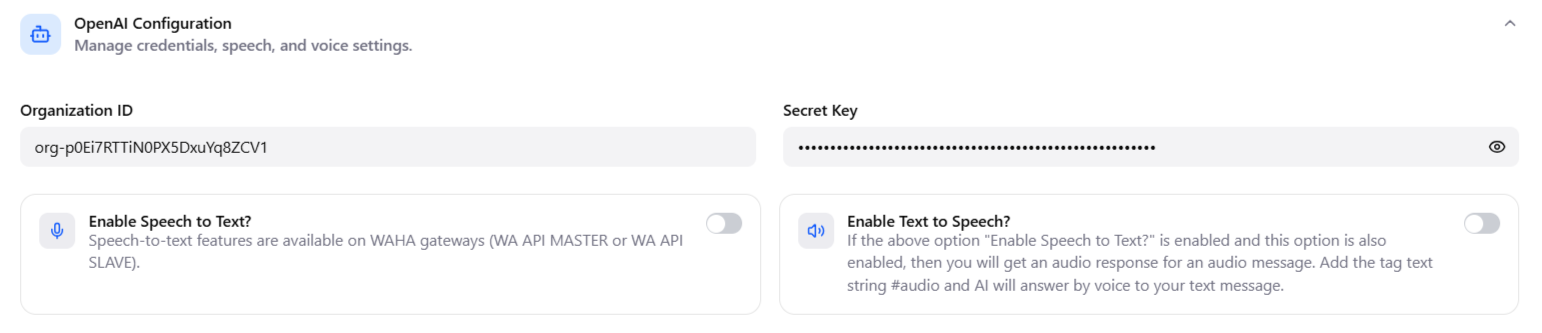
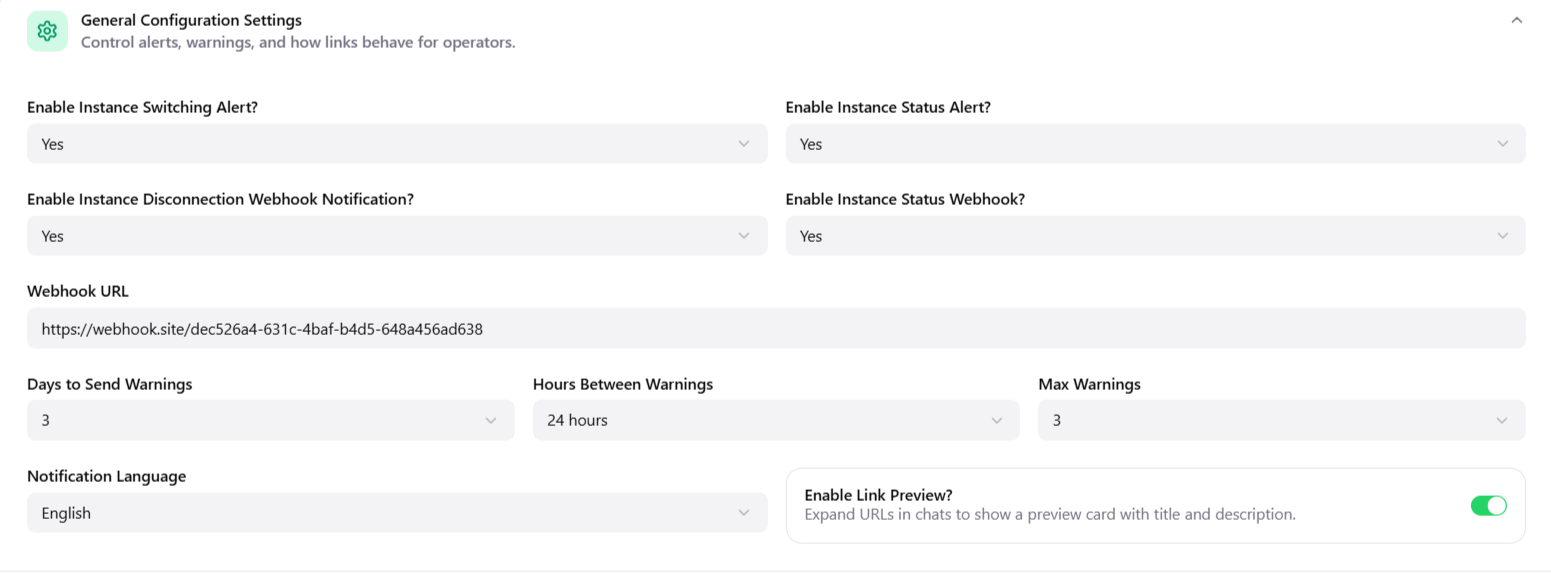
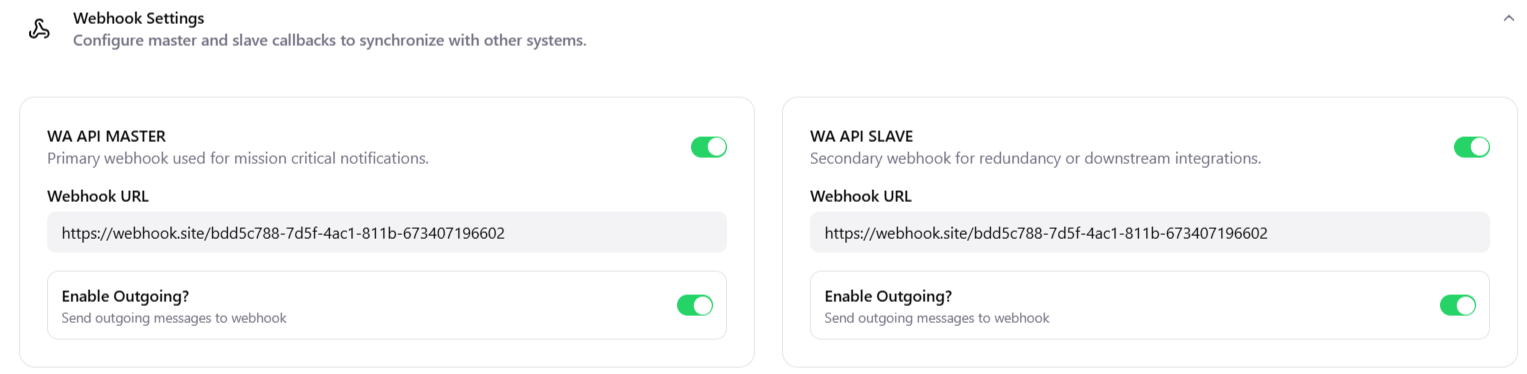
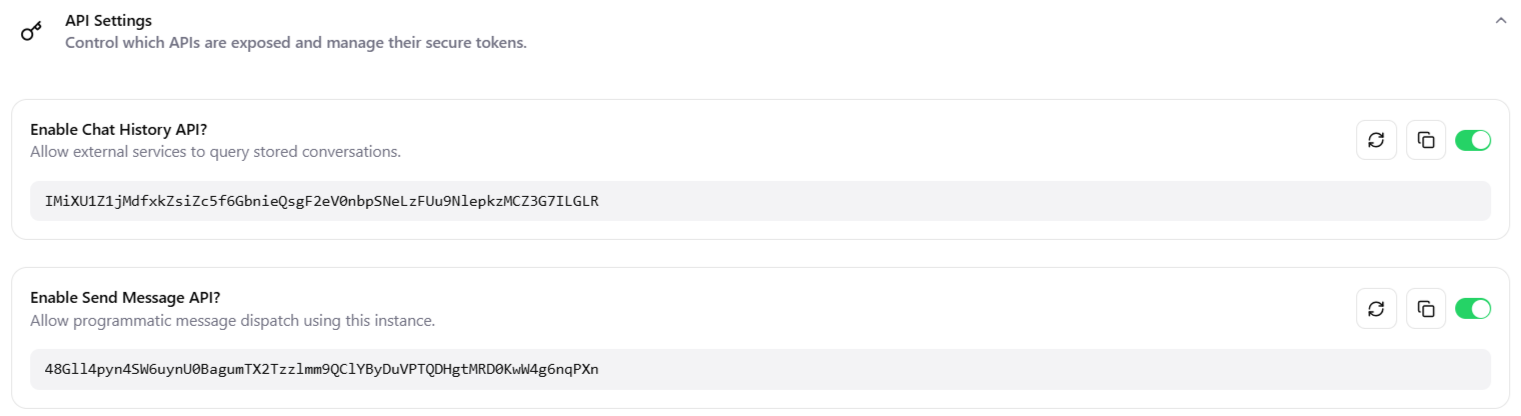
These settings make it possible to customize and optimize the use of Migasender and its integrations, improving the effectiveness of business communications.
Introduction (Templates)
The WhatsApp Templates page is where you create, manage, and monitor the message templates that MigaSender uses to send structured WhatsApp Business messages through the Meta Cloud API. WhatsApp requires every business-initiated message (marketing broadcasts, order confirmations, appointment reminders, OTPs, etc.) to be sent from a pre-approved template — you cannot simply send free-form text to a customer who hasn’t messaged you first. This page is the control center for that entire approval workflow.
From this page you can:
- View every template registered on your WhatsApp Business Account (WABA), together with its approval status.
- Search and filter templates by name, status, or category.
- Switch between a compact Table view and a visual Grid view.
- Preview exactly how a template will look inside a WhatsApp chat, including sample variable data.
- Create a new template and submit it to Meta for review.
- Sync your local template list with what is actually approved on Meta’s servers.
- Delete templates that are no longer needed.
- Connect or manually configure your Meta WhatsApp Business API (WABA) credentials.
Note: Templates you create here are reviewed by Meta before they can be used to send messages. Review typically takes anywhere from a few minutes up to 24–48 hours.
2. Accessing the Templates Page
- Log in to the MigaSender Control Panel.
- Select the correct app from the “Change App” switcher in the top-left corner (each WhatsApp line/app has its own template list).
- Click Templates in the left-hand navigation menu.
The page opens directly on the Templates tab, which lists every template currently known to the system for the selected app.
3. Page Layout Overview
The Templates page is organized into a header bar, a tab switcher, a toolbar, and the template list itself. The screenshot below shows the default Table view.
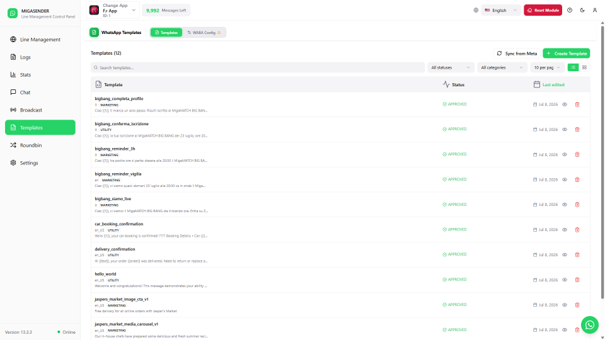
3.1 Header Bar
| Field | Description |
| Change App | Switches the active app/line. Every app has its own independent set of templates. |
| Messages Left | Shows how many outbound WhatsApp messages remain in the current billing quota for this app. |
| Language selector | Changes the display language of the whole Control Panel interface. |
| Reset Module | Administrative action that resets the module’s local configuration. Use only when instructed by support. |
| Support / Dark Mode / Profile icons | Quick access to help, light/dark theme toggle, and account settings. |
3.2 Section Tabs
Directly under the page title “WhatsApp Templates” there are two tabs:
- Templates — the template list and creation tools (this manual’s main focus).
- WABA Config — where the Meta WhatsApp Business API credentials are entered or connected (see Section 10).
Note: A small warning triangle appears next to “WABA Config” whenever the connected Meta access token is missing, invalid, or expired — this is a signal to check that tab.
4. The Template List Toolbar
The toolbar above the list gives you full control over what you see and how you see it.
| Field | Description |
| Templates (N) | A live count of templates currently loaded for this app. |
| Sync from Meta | Pulls the latest template list and statuses directly from Meta’s servers, overwriting stale local data. Use this after approving/editing a template on Meta’s Business Manager, or if a status looks out of date. |
| Create Template | Opens the panel to draft and submit a brand-new template (see Section 7). |
| Search templates… | Free-text search across template names. Results update instantly as you type. |
| All statuses (filter) | Filters the list to a single approval status: Approved, Pending, or Rejected. |
| All categories (filter) | Filters the list by WhatsApp category: Marketing, Utility, or Authentication. |
| 10 per page | Controls how many templates are shown per page (pagination size). |
| Table / Grid toggle | Switches the list layout between a dense table and a card-based grid (see Section 6). |
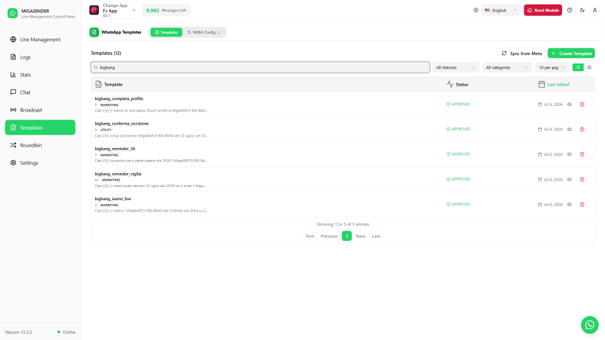
4.1 Searching for a Template
Type any part of a template’s name into the search box to instantly filter the list. The example below searches for “bigbang” and narrows 12 templates down to 5 matching results.
4.2 Filtering by Category
Click the “All categories” dropdown to restrict the list to a single WhatsApp template category. This is useful when you only want to review your Marketing broadcasts, or only your transactional Utility templates.
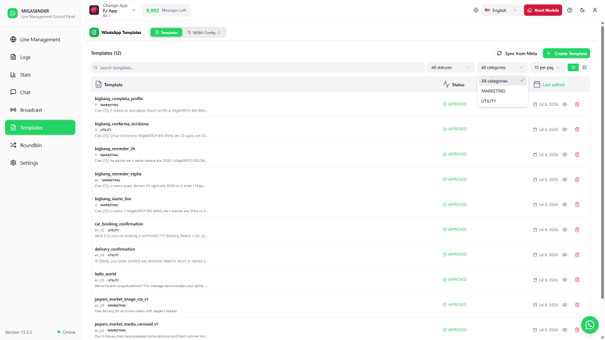
Note: The “All statuses” filter works the same way, letting you isolate templates that are still Pending review, or that were Rejected by Meta and need to be corrected and resubmitted.
5. Understanding the Template List Columns
Whichever view you use, each template row/card shows the same core information:
| Field | Description |
| Template name | The unique, system-level name of the template (lowercase letters, numbers, and underscores only, e.g. bigbang_reminder_3h). |
| Language code | The WhatsApp language code the template was written in (e.g. it, en, en_US). |
| Category badge | MARKETING, UTILITY, or AUTHENTICATION — determines WhatsApp’s pricing and delivery rules for that template. |
| Body preview | A truncated preview of the template’s message text, including any {{1}}, {{2}}… variable placeholders. |
| Status | APPROVED (green), PENDING (usually amber/orange), or REJECTED (red) — Meta’s current review verdict. |
| Last edited | The date the template was last created or modified. |
| Preview icon (eye) | Opens a live chat-style preview of the template (see Section 8). |
| Delete icon (trash) | Permanently deletes the template, both locally and from Meta (see Section 9). |
6. Table View vs. Grid View
Use the two small icons at the right of the toolbar to switch how templates are displayed. Both views show identical data — pick whichever is easier for your workflow.
6.1 Table View
A compact, spreadsheet-style list. Best when you need to scan many templates quickly or compare statuses and edit dates at a glance.
6.2 Grid View
A card-based layout that gives each template more visual breathing room, useful when reading full message previews. Click the grid icon (next to the table icon) to switch.
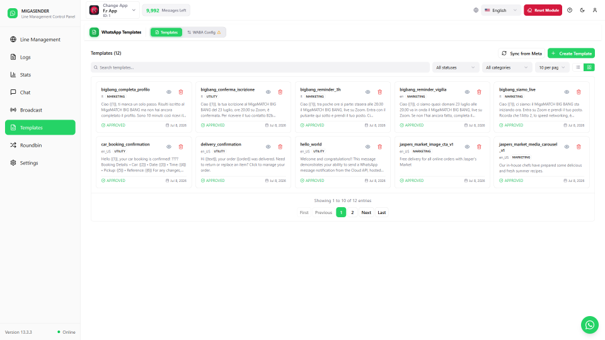
Figure 4 — Templates page in Grid view, with pagination controls visible below the cards.
Note: Pagination controls (First / Previous / page numbers / Next / Last) appear beneath the list in both views whenever there are more templates than the selected page size.
7. Creating a New Template
Click the green Create Template button in the top-right of the toolbar to open the creation panel on the right side of the screen.
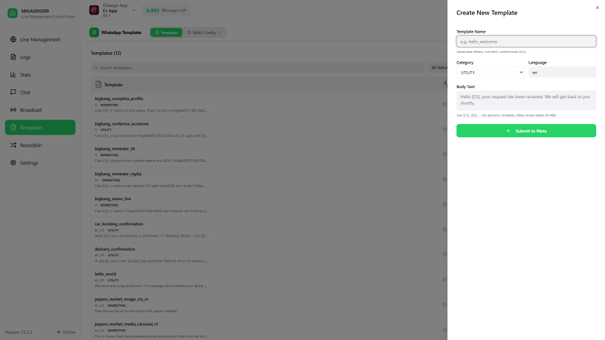
Figure 5 — Create New Template panel.
7.1 Fields
| Field | Description |
| Template Name | A unique internal identifier. WhatsApp requires lowercase letters, numbers, and underscores only (e.g. hello_welcome). Spaces and capital letters are not allowed. |
| Category | Choose UTILITY, MARKETING, or AUTHENTICATION. This must match what the message is actually used for — Meta reviews mismatches strictly and may reject the template. |
| Language | The WhatsApp language code for the template body, e.g. en, it, en_US. |
| Body Text | The actual message content. Insert dynamic placeholders using double curly braces, e.g. {{1}}, {{2}}, which are filled in with real values (customer name, order number, etc.) at send time. |
7.2 Submitting for Review
- Fill in the Template Name, Category, Language, and Body Text.
- Double-check the wording — Meta reviews the exact text you submit, and edits after rejection require a full resubmission.
- Click Submit to Meta.
- The new template appears in the list with a PENDING status until Meta finishes reviewing it (typically 24–48 hours).
Note: Once approved, run Sync from Meta (Section 4) if the status doesn’t update automatically, to pull the latest APPROVED/REJECTED verdict into MigaSender.
8. Previewing a Template
Click the eye (Preview) icon on any template row or card to see exactly how the message will render inside a real WhatsApp conversation, styled as an actual chat bubble.
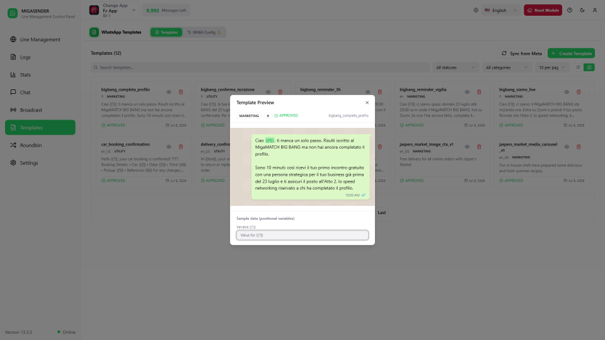
Figure 6 — Template Preview dialog, showing the rendered message bubble and sample-data inputs.
The preview dialog also shows a Sample data section listing every positional variable used in the template (e.g. {{1}}). Type example values into these fields to see how the final, personalized message will look once real customer data is substituted in.
Note: This preview is for visual reference only — filling in sample values here does not send any message or affect the template on Meta’s servers.
9. Deleting a Template
Click the trash icon on any template row or card to remove it.
- Click the trash/delete icon next to the template you want to remove.
- A confirmation prompt appears: “Delete template ‘<name>’? This will also remove it from Meta.”
- Confirm to permanently delete the template from both MigaSender and your Meta WABA, or cancel to keep it.
Warning: This action is permanent and also removes the template from Meta — it cannot be undone. If the template is still in active use for automated messages or broadcasts, sending will fail after deletion. Only delete templates you are certain are no longer needed.
LINK: https://support.migastone.com/en/hrf_faq/Migasender/